Automate TradingView alerts. Trade NinjaTrader 8 or Tradovate.
CrossTrade connects TradingView strategy and indicator alerts to your futures accounts. Send a webhook with your order instructions: NinjaTrader 8 executes through the connected NT8 Add-On, or Tradovate receives the order directly from our cloud. Unlimited webhook alerts start at $29 per month.
You bring the indicator or strategy. CrossTrade handles the connection and order routing, rather than choosing trades for you.
01
Connect your execution route
For NinjaTrader 8, install the CrossTrade NT8 Add-On and keep the platform connected. For Tradovate cloud automation, link the account in My Account, Brokers. No NT8 installation is needed for that route.
02
Create the webhook alert
Choose the indicator or strategy condition in TradingView. Paste your CrossTrade webhook URL into Notifications and your order message into the alert. The Command Builder generates the message for your selected account and order.
03
Verify an entry and exit
Start in Sim or Demo. Check TradingView’s alert log, CrossTrade Alert History and the actual broker orders. Then test exits and brackets. Follow the complete NinjaTrader setup or Tradovate setup.
app.crosstrade.io/webhooks
LIVE WEBHOOKS
Why CrossTrade over other alert bridges
Unlimited alerts. Unlimited accounts. One flat price.
Other alert bridges
Alert quotas, or a bill that climbs with your volume
A fee for every account you connect
JSON payloads you hand-write and debug
One broker, one route
CrossTrade
Unlimited alerts on every planNo monthly quota, no daily cap, no overage fees, starting on Standard at $29 a month.
Unlimited accounts on every alertList accounts separated by commas and one alert places the order on all of them. Connect as many accounts as you trade.
NinjaTrader 8 and TradovateOne line in the alert picks the destination. Tradovate runs in our cloud with no desktop software.
~30ms through the pipelineFrom webhook received to order routed, on average.
Plain text, or no text at allA simple key=value format, a visual Command Builder, or the XT Alert Builder writing it for you.
Controls on every alertStrategy Sync, max positions, trading windows, and rate limits you set, applied before any order goes out.
The signal pipeline
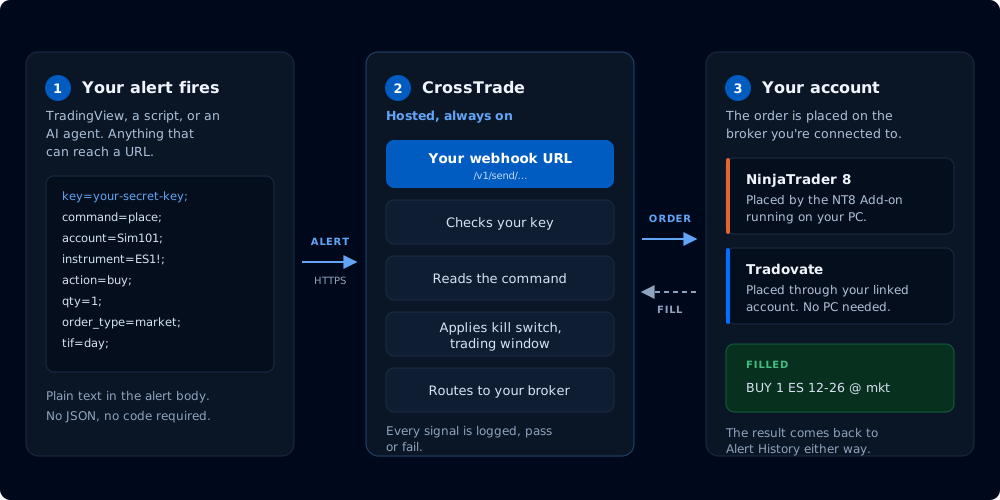
A TradingView alert becomes an executed order in three hops. CrossTrade sits in the middle, authenticating, validating, and routing every signal to whichever broker you point it at.
monitoring
TradingViewSignal Source
›
bolt
CrossTradeValidation & Routing~30ms
›
terminal
NT8 or TradovateExecution
01 — TRADINGVIEW
Alert fires
Your TradingView strategy or indicator triggers an alert. The alert message contains a CrossTrade-formatted payload with your order details. TradingView sends it to your personal webhook URL.
02 — CROSSTRADE
Validate & route
CrossTrade receives the webhook, authenticates your key, validates the format, applies any advanced options (Strategy Sync, rate limiting, multi-account placement), and reads your destination line to decide where the order goes.
03 — YOUR BROKER
Order executes
For NinjaTrader, the CrossTrade NT8 Add-On submits through NinjaTrader's Automated Trading Interface, with ATM strategies, brackets and every NT8-native feature available. For Tradovate, CrossTrade sends the order straight to Tradovate's cloud API over HTTPS, with nothing running on your machine. The pipeline averages ~30ms.
The same three steps, with the payload and the return path drawn in.
The alert format
CrossTrade uses a simple key=value format — no JSON required. Each line ends with a semicolon. Paste it into TradingView's alert message field, or use the Command Builder on your dashboard to build it visually.
Alert Message// Buy 1 MES at market on sim101 key=your-secret-key; command=PLACE; account=sim101; instrument=MES1!; action=BUY; qty=1; order_type=MARKET; tif=DAY;
Two destinations, one format
The same alert body works on both brokers. Add one line to route it to Tradovate instead of NinjaTrader. Leave it off and the order goes to NinjaTrader 8, so every alert you already have keeps working exactly as it does today.
Route to Tradovate// Same order, sent to your linked Tradovate account key=your-secret-key; command=PLACE; account=DemoAccount; instrument=MES1!; action=BUY; qty=1; order_type=MARKET; tif=DAY; destination=TRADOVATE;
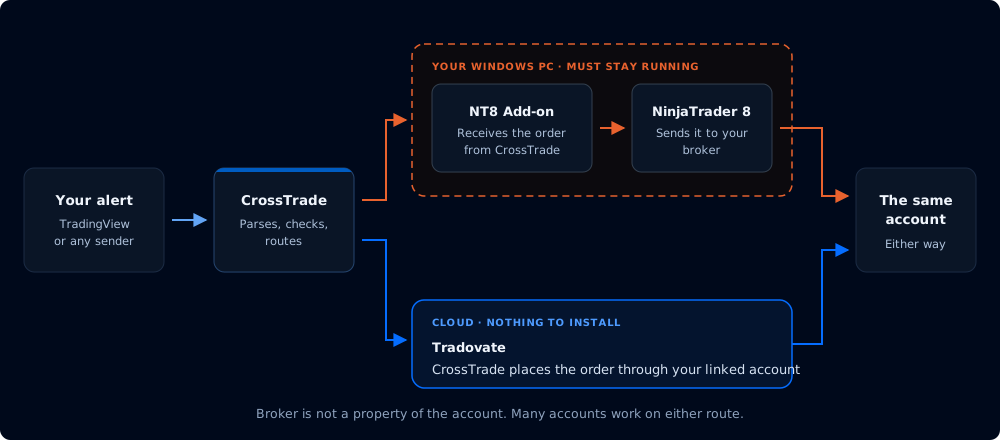
One alert, two routes. NinjaTrader executes through the add-on on your machine; Tradovate executes in the cloud.
desktop_windows
NinjaTrader 8
Orders run through the CrossTrade NT8 Add-On inside your NinjaTrader install, so ATM strategies, brackets and NT8-native order handling are all on the table. Needs NinjaTrader open and connected, which is what the CrossTrade VPS is for.
DESKTOP
cloud
Tradovate
CrossTrade sends orders directly to Tradovate's cloud API. Nothing runs on your machine, so there is no desktop app to keep open and no VPS to rent. Link the account once in My Account, Brokers tab, and CrossTrade handles token refresh from there.
NO DESKTOP SOFTWARE
Order types only Tradovate has
Routing to Tradovate is not a reduced version of the NinjaTrader path. Some order types exist there and nowhere else in CrossTrade, because Tradovate supports them natively.
trending_down
Native trailing stops
NinjaTrader has no trailing order type in webhooks; trailing there is done through ATM strategies. On Tradovate, order_type=trailingstop with a trail_offset is a first-class order. trailingstoplimit works the same way with a limit leg.
TRADOVATE ONLY
my_location
Market-if-touched
order_type=mit becomes a market order when price trades at your level, without resting in the book the way a limit does. The touch price goes in limit_price.
TRADOVATE ONLY
visibility_off
Iceberg orders
max_show limits how much of your size is visible in the book at once, so a large resting order does not advertise itself.
TRADOVATE ONLY
event
GTD and broker-side timeouts
Good-til-date expiry and broker-side order timeouts are handled by Tradovate itself rather than by anything running on your machine, so they survive your computer going to sleep.
TRADOVATE ONLY
CrossTrade also layers its own managed ATM on top of Tradovate: named cloud templates, target-fill breakeven, and profit-triggered trail activation with restart-safe trigger memory.
Tradovate execution details
Advanced options
Same key=value format, more power. Append any of these to your alert message to unlock advanced execution logic.
sync_lock
Strategy Sync
Compares expected vs. actual position state before every order. Prevents state drift between TradingView and NinjaTrader — the #1 cause of phantom positions and double entries.
SAFETY
speed
Rate Limiting
Block duplicate signals within a configurable time window. TradingView fires duplicate alerts more often than you'd think — rate limiting catches them before they become duplicate orders.
SAFETY
groups
Multi-Account Placement
Hit up to 10 NinjaTrader accounts from a single alert. Separate account names with commas — one webhook, one payload, all accounts filled simultaneously.
SCALE
account_tree
Bracket Orders
Add take_profit and stop_loss to any order. Supports tick, percentage, point, and dollar offsets. Plotted on TradingView for backtesting when used with the Alert Builder.
CONFIG
label
Strategy Tags
Assign position ownership with strategy_tag. Run multiple strategies on the same account and instrument without interference — Strategy B can't close Strategy A's position.
CONFIG
play_arrow
Flatten First
Close all existing positions on the account before placing the new order. One key=value pair turns a reversal into a clean slate entry. Works with or without Strategy Sync.
The Command Builder on your CrossTrade dashboard walks you through building webhook payloads step by step — select your account, instrument, order type, and advanced options from dropdown menus. It generates the exact alert message you need, ready to paste into TradingView.
Or use the XT Alert Builder on TradingView — a Pine Script strategy that wraps your indicators and generates CrossTrade-compatible alerts with full backtesting. No code required.
Everything NinjaTrader supports, CrossTrade can execute via webhook.
trending_up
Market & Limit Orders
Market orders execute immediately at current price. Limit orders sit on the book at your specified level. Both support all time-in-force options (DAY, GTC, IOC).
swap_vert
Stop & Stop Limit
Stop orders trigger at your price and execute as market. Stop limit orders trigger at your stop price and place a limit at your limit price. Full bracket support.
stacked_line_chart
ATM Strategies
Attach any NinjaTrader ATM template to your webhook order. Trailing stops, auto-breakeven, multi-target management — all handled by NT8 after CrossTrade places the entry.
close_fullscreen
Position Commands
CLOSE, FLATTEN, and CANCEL commands let you manage existing positions without placing new orders. Close a specific instrument, flatten an account, or cancel all pending orders.
What you need
REQUIRED
A connected execution route
Either NinjaTrader 8 with the CrossTrade NT8 Add-On and an active data feed, or a Tradovate account linked directly to CrossTrade. Only the NT8 route requires your desktop to stay online.
REQUIRED
CrossTrade Account
Free 7-day trial includes full webhook access. Standard plan starts at $29/mo after trial. No per-order fees.
REQUIRED
TradingView
Any paid TradingView plan with 2FA enabled. Free TradingView plans do not support webhook alerts.
TradingView automation questions
Can TradingView automatically place trades in NinjaTrader 8 or Tradovate?
A TradingView alert can send a webhook to CrossTrade, which submits the order to NinjaTrader 8 through the CrossTrade NT8 Add-On or directly to a linked Tradovate account. A strategy running in TradingView does not place those broker orders by itself. You configure the alert, account, order message and exits.
Do I need NinjaTrader or a VPS for TradingView automation?
For the NinjaTrader 8 route, NinjaTrader and the CrossTrade NT8 Add-On must stay open and connected on a Windows computer or VPS. The direct Tradovate route runs in CrossTrade’s cloud and does not require NinjaTrader, a local computer or your own VPS.
Can I automate an indicator without rewriting it as a strategy?
Yes, if the indicator exposes the alert conditions you need. Configure those alerts with CrossTrade order messages, or use the Command Builder to generate the messages. Entry alerts and exit alerts need their own intended behavior; an alert firing is not proof that an order filled.
Can one TradingView alert trade multiple accounts?
Yes. Multi-account placement sends one CrossTrade command to a list of accounts. A trade copier is a different workflow: it follows a leader account and applies each follower’s sizing and copy-mode settings. Choose the workflow that matches your order source and test entries and exits in simulation.
Which subscriptions do I need?
CrossTrade webhook automation starts on Standard at $29 per month, with a free 7-day trial. TradingView webhook access requires a paid TradingView plan and two-factor authentication. Trade copying and Account Manager controls are Pro features; broker, market-data and TradingView fees are separate.